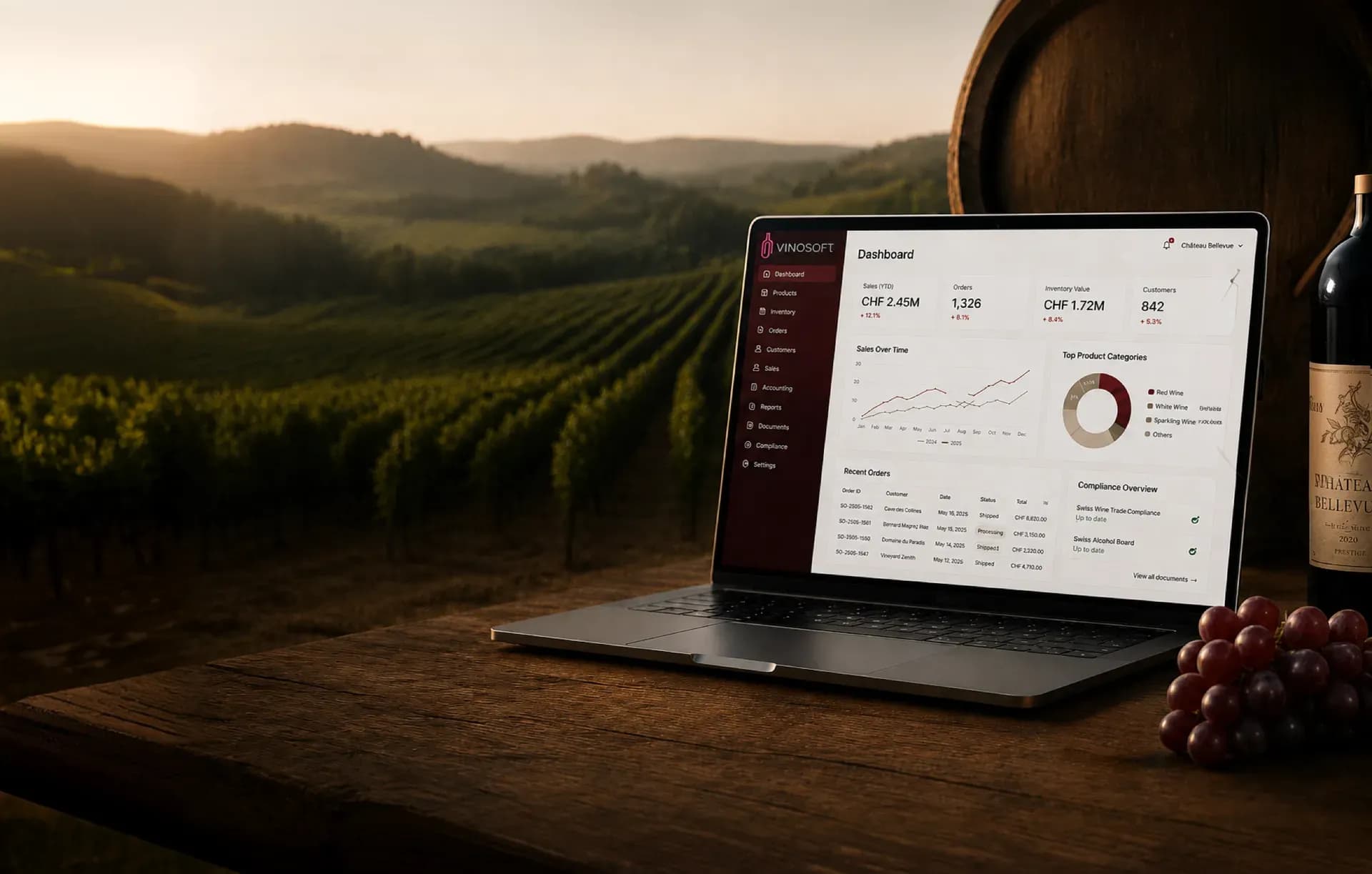
A Winery Dashboard for Turnover, Receivables and Tasks
The dashboard is the screen your team lands on every morning: turnover, open receivables, the tasks in flight and one-click access to the documents each person actually works with.
The question a dashboard has to answer
Most systems answer what happened last year. The question in a wine business on a Tuesday morning is smaller and more urgent: what is unpaid, what has to ship this week, and where is the customer record I need right now. Anything that takes four clicks to find gets replaced by a spreadsheet within a month.
So the dashboard is built out of widgets, and each user arranges their own. The person in the cellar keeps stock and deliveries in view; the person doing the invoicing keeps receivables and the dunning list. Nothing is hidden behind a report you have to run first.
What you can put on it
- Rapid access to the documents and records you open most, so a new quote is one click from the front page
- Turnover for the running period, with the comparison against the year before
- Open receivables — what is invoiced, what is overdue, and how much of it is money you should be chasing today
- Tasks, if you use the task add-on, with what is assigned to you and what is due
- Events and appointments, including appointments arranged through Doodle
- Address lookup via Search.ch, which takes a Swiss address straight into the address module instead of you typing it
Arranged per user, not per company
Widgets are added, removed and dragged into place by the person using them, and the arrangement is saved for that user. There is no administrator to ask, and a colleague's layout is never disturbed by yours. A new employee starts from the default set and shapes it as they learn which numbers they check daily.
Where the numbers come from
Nothing on the dashboard is entered twice. Turnover is the invoices you raised, receivables are the ones nobody has paid, stock figures are the postings your delivery notes made. Click a figure and you are in the document behind it — the invoice, the customer, the article — rather than in a report that merely agrees with it.
On the tablet, in the cellar
The dashboard is laid out for a tablet as well as a desktop, which matters because the questions it answers are asked away from the desk — during a stock check, at a customer's table, on the way to a delivery. It is the same session, the same figures and the same rights as on the office machine, without an app to install.
Read the documentation
- Read the dashboard and its widgets — what each widget shows and how to read it
- Add, remove, and rearrange widgets — making the screen your own
- Managing tasks — the task board behind the tasks widget
- Open invoices — the full list behind the receivables figure