19 November 2026
Many of you already have an AI assistant open all day: Claude for emails, ChatGPT for a quick calculation, Cursor or Claude Code for the shop theme. Until now that assistant knew nothing about your business. You copied figures out of Vinosoft, pasted them in, and copied the answer back.
That copying is over. Vinosoft now has an MCP server, and any AI client that supports MCP can connect to your account and work with your real data.
What is MCP?
The Model Context Protocol (MCP) is an open standard for connecting AI assistants to other software. You may already use it without having noticed the name: the "connectors" in Claude and ChatGPT for a calendar, a mailbox or a file store are MCP connections. Vinosoft is now one more entry in that list.
Once connected, the assistant gets a set of tools: small, well-defined actions such as "find documents", "get open invoices" or "create a document". It decides which ones to call to answer your question. You simply ask in your own words.
What you can do with it
A few questions that work today:
- "Which invoices are overdue, and who owes us the most?"
- "How did turnover in October compare with October last year?"
- "Which wines are below 12 bottles in stock?"
- "Draft a quote for Hotel Alpenblick: 24 bottles of the Pinot Noir and 12 of the Chasselas."
- "Find all our customers in Lausanne and give me a link to the last invoice PDF for each."
- "Which shop products have no French description yet? Translate them."
The real gain is the combination with everything else your assistant can reach. It can read a customer's email and prepare the matching quote, put the open invoices into a spreadsheet, or set a follow-up task after a meeting it has in your calendar.
How this differs from the AI Assistant inside Vinosoft: the built-in assistant lives in Vinosoft and uses your AI credits. With MCP, the AI model is the one you already pay for at Anthropic, OpenAI or elsewhere, so MCP requests use no AI credits. Both use the same tools underneath, so they give the same figures.
Connect in two minutes
Everything runs through one address:
https://app.vinosoft.ch/mcpThere are two ways to connect. Use the first one if your client offers it.
Option A: sign in from your AI client (Claude, ChatGPT)
Clients with connectors sign you in through your browser, so there is no token to copy.
- In your AI client, open the connector settings and add a custom connector. In Claude this is Settings → Connectors → Add custom connector; in ChatGPT it is under Settings → Apps & Connectors. Menu names change now and then, and custom connectors may depend on your plan.
- Give it a name, for example Vinosoft, and paste the server address
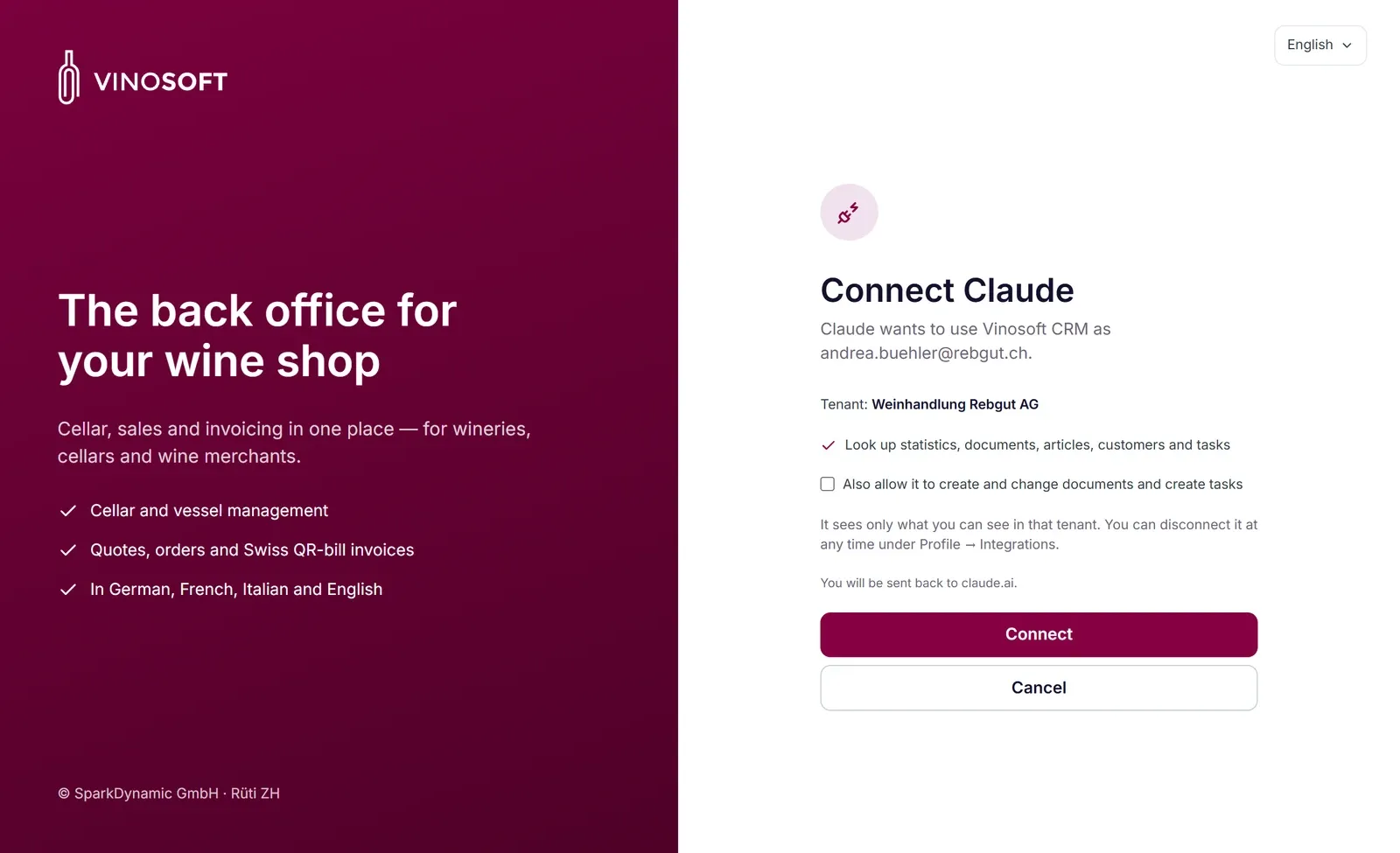
https://app.vinosoft.ch/mcp. - Click Connect. A Vinosoft page opens in your browser. Sign in if you are asked to.
- Check the tenant and decide whether the assistant may also make changes. That box is unticked at first, so a new connection is read-only unless you say otherwise.
- Click Connect. You are sent back to your AI client and the Vinosoft tools appear there.
Option B: an access token (Claude Code, Cursor, scripts)
Developer tools and your own scripts usually take a token instead.
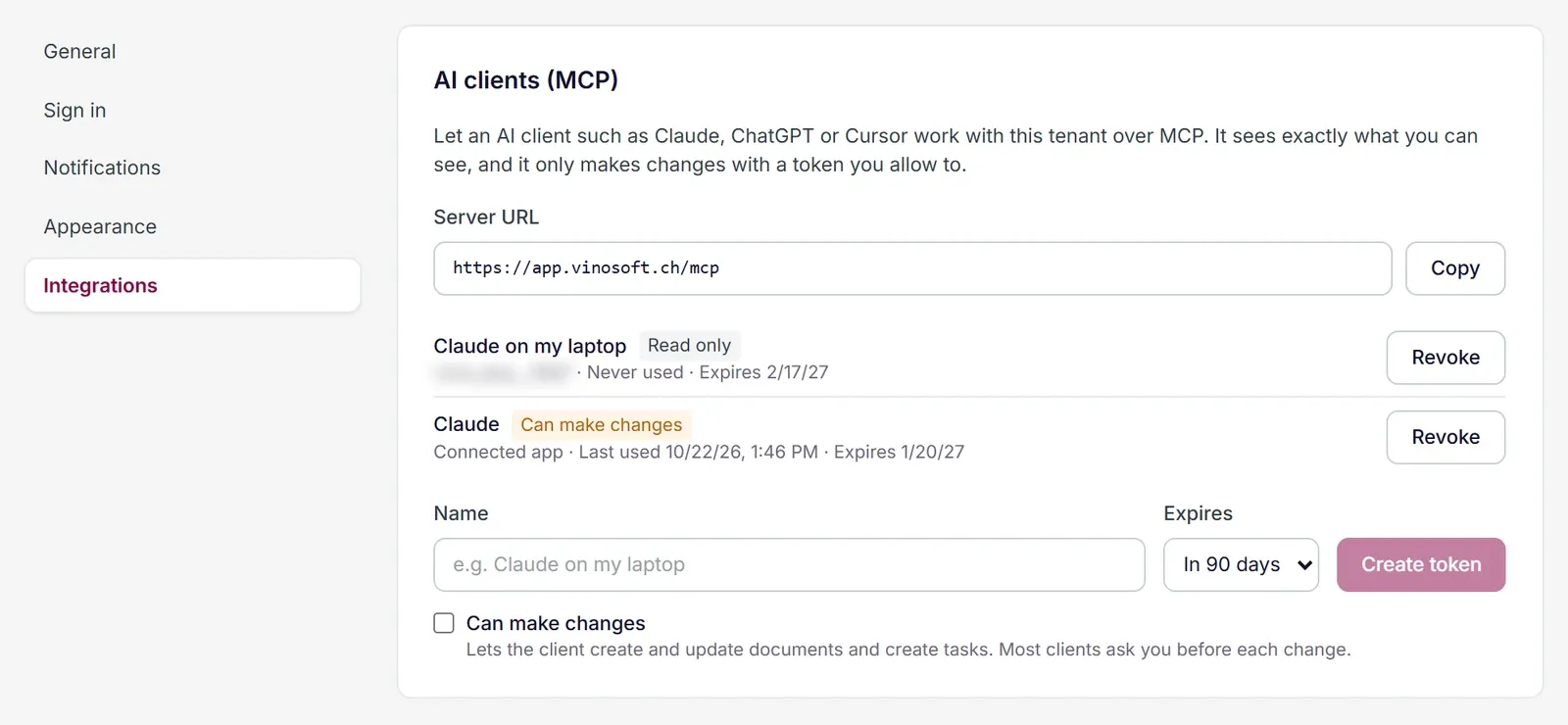
- In Vinosoft, click your profile icon at the top right and open the Integrations tab.
- In the card AI clients (MCP), enter a name that tells you later where the token is used, for example Claude on my laptop.
- Choose when it expires: in 30 days, in 90 days, in a year, or never.
- Tick Can make changes only if the client should create or change things. Without it the token is read-only.
- Click Create token.
Vinosoft shows the token once. Copy it straight away; if you lose it, revoke it and create a new one.
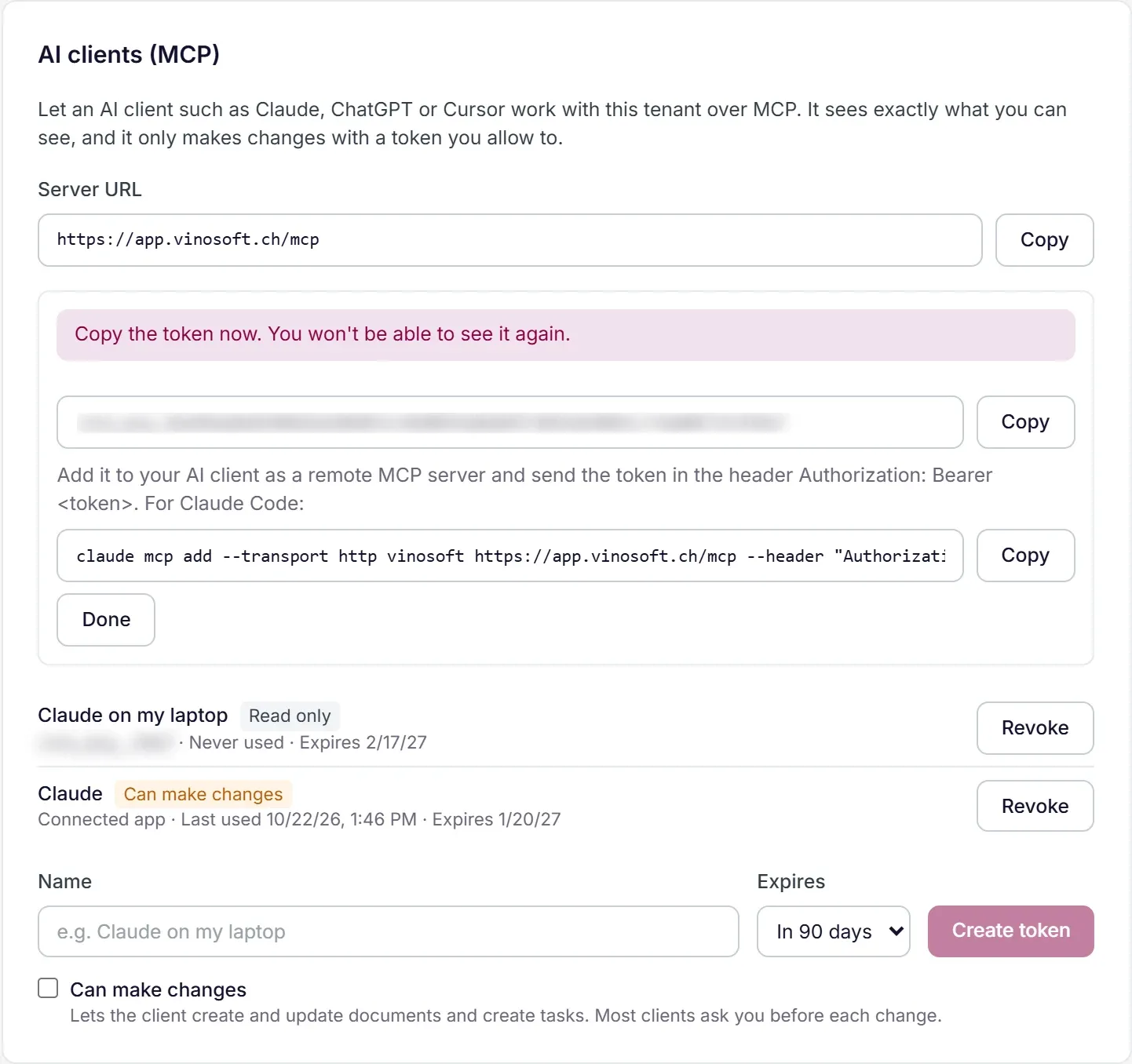
Under the token you find a ready-made command for Claude Code:
claude mcp add --transport http vinosoft https://app.vinosoft.ch/mcp --header "Authorization: Bearer <your token>"For Cursor and other clients that are configured with a JSON file, add Vinosoft as a remote server and send the token in the Authorization header:
{
  "mcpServers": {
    "vinosoft": {
      "url": "https://app.vinosoft.ch/mcp",
      "headers": { "Authorization": "Bearer <your token>" }
    }
  }
}
Not comfortable with a terminal? Let the assistant set itself up. Copy the command Vinosoft shows under your new token and paste it into your AI client with a short request:
Please configure this MCP server for me:
claude mcp add --transport http vinosoft https://app.vinosoft.ch/mcp --header "Authorization: Bearer <your token>"
Assistants that can run commands or edit their own settings, such as Claude Code or Cursor, do the rest themselves and tell you when Vinosoft is connected.
Treat a token like a password. Anyone who has it can read your Vinosoft data with your permissions. Give it only to the AI client that should use it, and don't paste it into other chats, emails or shared documents.
You stay in control
- It sees what you see. A connection works with your own permissions. A module or document type you cannot open in Vinosoft is closed to your assistant too, and a permission that is taken away from you is gone for the assistant on its next request.
- Read-only unless you allow more. Without "Can make changes" the tools that write are not even offered to the assistant.
- Your assistant asks first. Tools that change something are marked as such, and most clients ask for your confirmation before each of those calls.
- Revoke at any time. Under Profile → Integrations every token and every connected app is listed with its last use. Revoke ends it at once.
- PDF links expire. A link to a document PDF that the assistant receives is valid for 15 minutes.
- We log calls, not content. For each call we record who called which tool, when, and whether it succeeded. The arguments and results are not stored.
One thing to keep in mind: whatever the assistant reads from Vinosoft is processed by the AI provider you connected. Connect only clients whose terms fit your business.
Limits
Each connection may make 60 requests per minute. That is far more than a conversation needs; the limit is there to stop an automation that runs in circles. If it is reached, the assistant gets a message to wait a minute and can carry on afterwards. Nothing is lost.
MCP requests use no AI credits, and there is no extra charge for the MCP server at the moment.
Working with several tenants
If your login belongs to more than one tenant, a token can cover several of them: tick the tenants when you create it, or change them later with Tenants next to the token. The assistant then chooses the tenant per request, and a request that names none runs in the default tenant. A connection made by signing in from the AI client (option A) covers the one tenant you pick on the connect page.
The tools
Which tools your assistant sees depends on your modules, your permissions and on whether the connection may make changes. Tools marked ✎ change something and need Can make changes.
Sales and statistics
Tool | What it does |
|---|---|
| Net turnover per year, or month by month for one year, with credit notes deducted. |
| Customers ranked by net turnover, for a year or all time. |
| Units sold, number of different products and the top products, for a year or all time. |
| Units sold per product, for a year or all time. |
| Unpaid invoices, most overdue first. |
| How many days customers take to pay on average, per customer. |
| Articles at or below a stock threshold, lowest first. |
| Inventory valuation: stock × net purchase price. |
Customers, articles and tasks
Tool | What it does |
|---|---|
| Finds customers by name, customer number or email. |
| Lists customers by town or postal code. |
| Searches the catalogue by SKU or name. |
| Everything about one article: sale and purchase prices, stock and more. |
| Lists manufacturers or reads one. |
| Changes a manufacturer's details. |
| The tasks assigned to you. |
| Creates a follow-up task for a customer or a document. |
| Searches the Vinosoft Help Center. |
Documents
Tool | What it does |
|---|---|
| Finds quotes, order confirmations, invoices, credit notes, delivery notes and purchase orders. |
| Returns a download link to a document's PDF, valid for 15 minutes. |
| Creates a new quote, order confirmation, invoice, credit note, delivery note or purchase order. |
| Changes an existing document. |
| Changes the unit price of a line on a document. |
Online shop: catalogue and translations
These need the Shop module.
Tool | What it does |
|---|---|
| The languages your shop is published in. |
| Lists the shop's products or reads one with its variants, prices, images and texts. |
| Lists collections or reads one with its rules and products. |
| Lists the shop's news items. |
| Lists navigation menus or reads one as a tree. |
| All texts of one item in every shop language. |
| Finds shop texts that are not translated yet. |
| Saves texts of a product, collection, page, news item or menu item in one language. |
| Changes the web address of a product, collection, page or news item and sets up the redirect. |
| Changes a news item's settings, such as template, publication and order. |
| Adds or removes tags on a product. |
Online shop: pages, themes and media
These need the Shop module.
Tool | What it does |
|---|---|
| Lists static pages or reads one in one language. |
| Creates, changes or deletes a static page. A deleted page goes to the recycle bin. |
| Lists themes and their files and reads a file. |
| Returns a link that shows your shop in a theme that is not active. |
| Creates or replaces a theme file, or changes part of one. |
| Deletes a theme file. This cannot be undone. |
| Lists the files and folders of the media library. |
| Adds a file to the media library and returns its public address. |
| Deletes a file or folder from the media library. This cannot be undone. |
| Lists your sites with their domains. |
| Adds a custom domain to a site and returns the DNS records to set. |
| Creates a landing site or pins one to a theme. Only with the Landing sites extension. |
With a token for several tenants there is also list_tenants, which tells the assistant which tenants it may work in.
Try it today
Connect your assistant read-only first and ask it something you would otherwise look up yourself, for example "What is still unpaid, and since when?" Once you trust the answers, allow changes and let it prepare your next quote.
We keep adding tools. If your assistant cannot do something you expected, tell us: your feedback decides what we build next.